
Printers
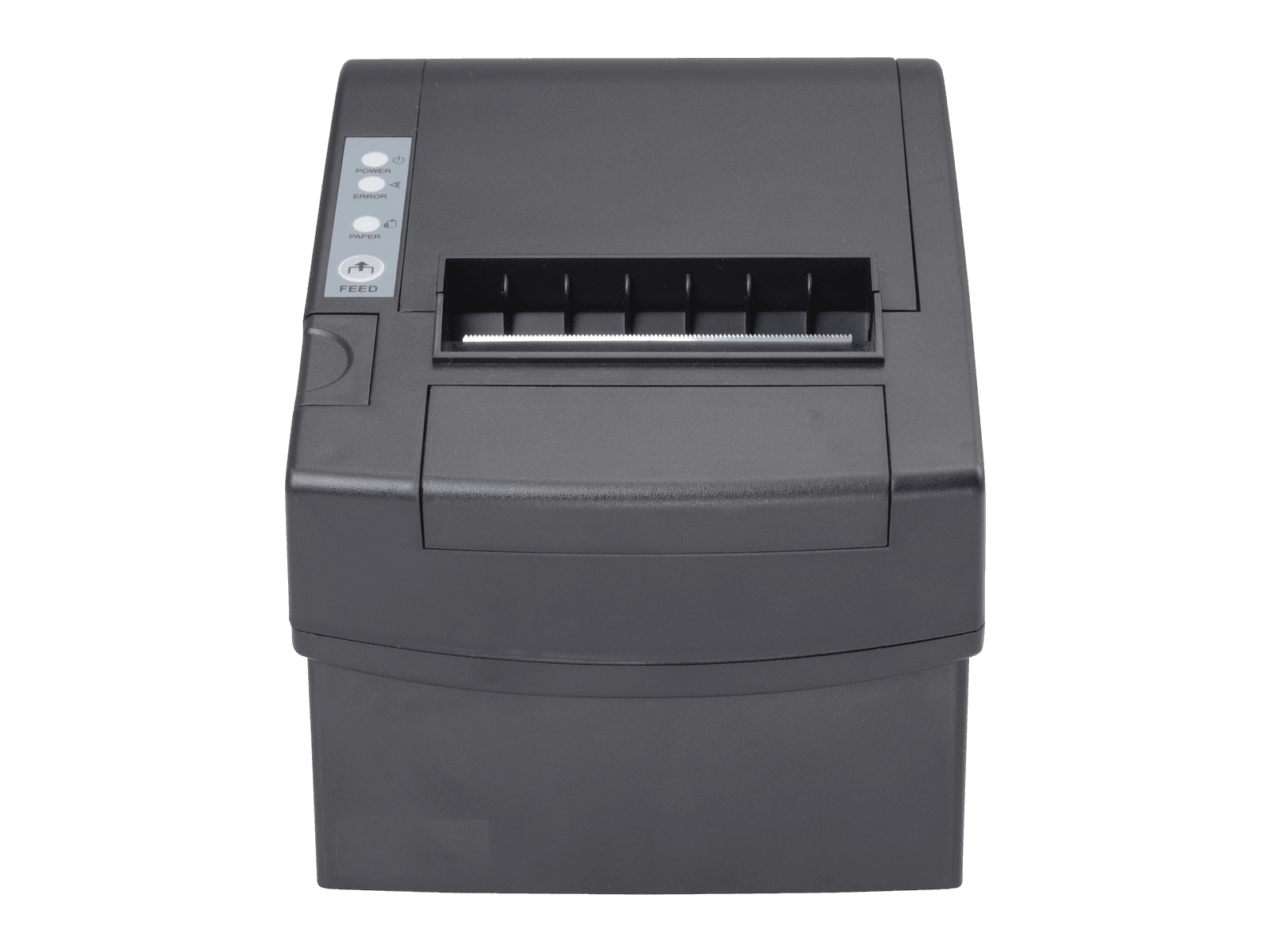
MG80
80 mm thermal receipt printer with serial, USB and Ethernet ports.
The MG80 prints receipts on 80 mm thermal paper at 260 mm/s. It connects over serial, USB or Ethernet and accepts ESC/POS commands.
Key points
- 80 mm thermal paper
- 260 mm/s print speed
- Serial, USB and Ethernet ports
- ESC/POS (Epson) compatible
- Cash drawer output
Specifications
Printing
| Technology | Thermal |
|---|---|
| Paper width | 80 mm |
| Print speed | 260 mm/s |
| Paper cutter | Automatic |
Connectivity
| Interfaces | Serial (RS-232), USB, Ethernet |
|---|---|
| Emulation | ESC/POS (Epson) |
| Cash drawer | 24 V DC output, 1 A |
| Power | 24 V DC, 2.5 A |
| Warranty | Manufacturer warranty (1 year) |
Other documents for this product are available on request. Request documentation
Compatible with
- Software that prints in ESC/POS (Epson emulation)
- Windows (driver V7.17) and Linux (CUPS driver), downloadable from the product page
- JG8000 and JG7000 terminals, over serial (RS-232), USB or Ethernet
- Cash drawer on the 24 V DC, 1 A output
- 80 mm thermal paper, including 200 ft rolls
Frequently asked questions
Does the MG80 open the cash drawer?
Yes. The MG80 has a 24 V DC, 1 A cash drawer output. The “Connecting a cash drawer to the RJ port of a receipt printer” guide describes the hookup.
Does the MG80 work on Linux?
Yes. The Linux (CUPS) driver can be downloaded from the product page, with its installation steps and SHA-256 checksum. The Windows driver (version 7.17) is there as well.
What paper width does the MG80 use?
80 mm thermal paper; the 200 ft roll fits. The width set in the driver must match the roll installed.
Drivers and tools
Drivers
SHA-256 checksum: ce6f03bdb71cc5d86af0ec4287e4ed93f7173fc94aa893bcc05cf6e1ce5ca6c2
SHA-256 checksum: f080dcd2b7dcc0b2179fa3d0845d42b22148c5a5bc3ff22e9a5f761e128ab6fa
Installation
- Extract the archive: tar xzf G4POS-MG80-pilote-Linux.tar.gz
- In the new folder, run: sudo sh ./installateur-MG80-Linux.run (CUPS and bzip2 required).
- If CUPS does not restart on its own: sudo systemctl restart cups
- Open http://localhost:631, add the printer and pick the POS-80 model.
Documents
Page revised on
Related guides and terms
Technical guides
Open a reseller account
The account is free and reserved for businesses. It gives you access to our wholesale prices, training and technical support.